
Download 4Videosoft Video Converter – Fast, Free, Secure Video Conversion Tool
Overview
In today’s multimedia‑driven world, the need to convert video files for different devices is almost unavoidable. Whether you own an iPhone, an Android tablet, a gaming console, or a legacy media player, each platform often requires a specific video codec or container format. 4Videosoft Video Converter steps in as a handy, free utility that simplifies this otherwise tedious process.
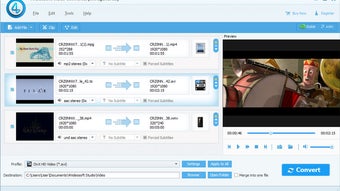
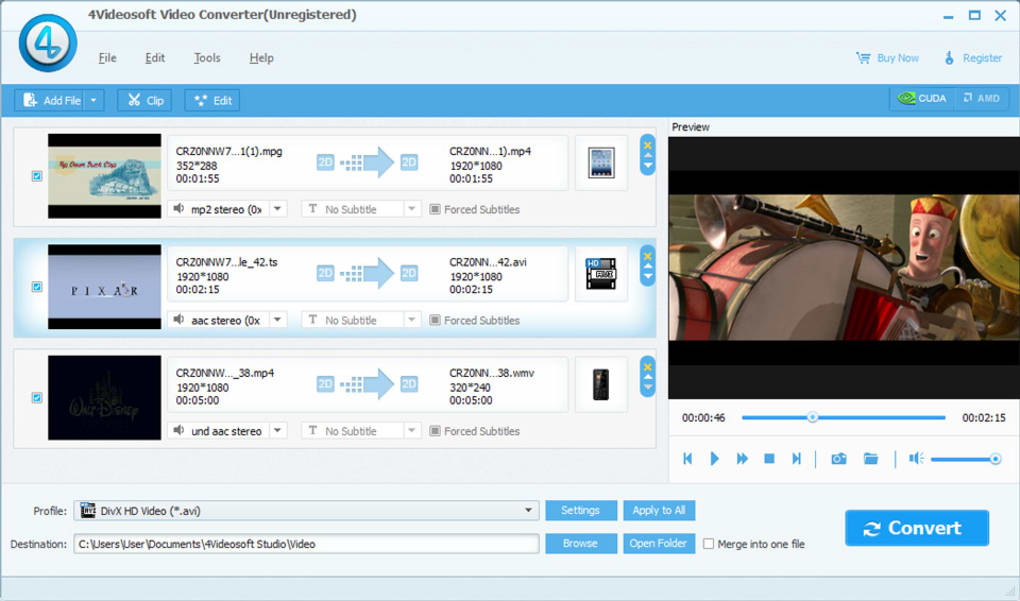
Designed with a clean, user‑friendly interface, the converter lets you add one or multiple video files to a queue, pick a target format from an extensive drop‑down menu, and launch the conversion with a single click. The software supports dozens of popular formats, neatly grouped by device families such as iPod Touch, Apple TV, PSP, Creative Zen, Zune, Xbox, iPhone, and many leading Android phones. While the preset profiles cannot be customized or saved as new templates, they cover the most common resolution, bitrate, and aspect‑ratio settings needed for everyday playback.
Beyond basic conversion, 4Videosoft also bundles lightweight editing tools—trim, crop, and preview—that enable you to extract only the segment you need before the conversion starts. The built‑in video player further helps you verify the output without leaving the application. Altogether, the converter offers a balanced mix of speed, simplicity, and essential editing features, making it a solid choice for users who need a reliable, free video conversion solution on Windows.
Key Features
- Wide Format Support: Convert between more than 30 video formats, including MP4, AVI, MOV, WMV, FLV, MKV, and device‑specific containers.
- Device‑Centric Presets: Pre‑configured profiles for iPod Touch, iPhone, iPad, Android phones, Xbox, PlayStation, PSP, Creative Zen, Zune, and Apple TV.
- Batch Conversion: Add multiple files to a queue and convert them sequentially, saving time on large media libraries.
- Basic Editing Tools: Trim unwanted sections, crop the frame to focus on a specific area, and adjust start/end points before conversion.
- Integrated Video Player: Preview source and output files within the same interface to ensure correct settings.
- Fast Processing Engine: Optimized codecs that leverage multi‑core CPUs for quicker conversion without sacrificing quality.
- Free & Secure: No hidden fees, ad‑free experience, and regular updates that keep the software compatible with the latest video standards.
- Simple UI: Drag‑and‑drop file addition, clear drop‑down menus, and one‑click start button for hassle‑free operation.
Installation & Usage Guide
Step‑by‑Step Installation
Installing 4Videosoft Video Converter is straightforward. First, visit the official 4Videosoft website and click the Download button for the Windows version. The installer file (4VideosoftSetup.exe) is typically under 15 MB, making it quick to download even on slower connections.
Run the executable, and the standard Windows Setup wizard will appear. Accept the license agreement, choose your preferred installation folder (the default is C:\Program Files\4Videosoft Video Converter), and click Install. The process completes in under a minute, after which you can launch the program from the Start menu or desktop shortcut.
How to Convert a Video
Once the application opens, you’ll see a clean main window with a large Add Files button. Click it or simply drag your video files into the queue area. After loading the files, select a target device from the Device Preset drop‑down list.
Each preset automatically adjusts resolution, frame rate, and codec to match the selected device’s specifications. If you prefer a custom format, choose Custom Settings and manually set the container, video codec, audio codec, and bitrate. For quick edits, click the Trim icon to mark start and end points, or the Crop button to focus on a particular region of the frame.
When everything is set, press the bright Start button. The progress bar displays real‑time conversion status, and you can pause or cancel at any point. After completion, the output files appear in the destination folder you specified in the Settings tab.
Finally, use the built‑in player to verify playback quality before moving the files to your device.
Compatibility, Pros & Cons
Operating System Compatibility
4Videosoft Video Converter is built exclusively for Windows platforms, supporting Windows 7, 8, 8.1, and 10 (both 32‑bit and 64‑bit). The software requires at least a dual‑core processor, 2 GB of RAM, and 100 MB of free disk space for installation. While there is currently no native macOS, Linux, Android, or iOS version, the Windows executable can run on macOS machines using virtualization tools like Parallels or Boot Camp.
Pros
- Free to download and use without hidden charges.
- Extensive format and device support simplifies conversion for many popular gadgets.
- Batch processing saves time when handling large video libraries.
- Built‑in trimming and cropping eliminate the need for separate editing software.
- Lightweight installer and low system requirements make it suitable for older PCs.
- Regular updates keep the codec library current and secure.
Cons
- No custom profile saving; users must rely on preset configurations.
- Lacks advanced editing features such as filters, subtitles, or watermarks.
- Windows‑only; no native macOS, Linux, Android, or iOS app.
- Interface, while clean, feels a bit dated compared to newer converters.
- Output quality may vary for high‑resolution 4K source files due to limited codec options.
Frequently Asked Questions (FAQ) & Conclusion
Is 4Videosoft Video Converter really free?
Yes, the base version is completely free. It offers all core conversion functions without any hidden fees or mandatory upgrades. Optional premium add‑ons may be available in the future, but they are not required for standard use.
Can I convert videos for my Android phone?
Absolutely. The software includes preset profiles for popular Android brands such as Samsung, Huawei, and LG. You can also select a generic Android preset or customize settings manually.
What video quality can I expect after conversion?
The output quality depends on the source file and the chosen preset. For most standard‑definition and high‑definition videos, the preset maintains the original visual fidelity while adjusting the codec for device compatibility. For 4K content, you may need to tweak bitrate and resolution manually.
Does the program support subtitles?
The free version does not embed subtitles directly. If you need subtitle support, you’ll have to add them in a separate step using a dedicated subtitle editor or a more advanced converter.
Is the built‑in video player reliable for previewing large files?
The integrated player works well for most clips under 2 GB. For extremely large or high‑resolution files, you might experience slight lag, in which case using an external player like VLC is recommended.
Conclusion – Should You Download 4Videosoft Video Converter?
If you’re looking for a straightforward, free solution to convert videos for a wide range of devices, 4Videosoft Video Converter delivers exactly that. Its extensive preset library, batch processing capability, and basic editing tools make it a practical choice for casual users and small‑scale video enthusiasts. While it lacks some advanced features and is limited to Windows, the software’s ease of use, secure updates, and zero‑cost model outweigh these drawbacks for most everyday conversion tasks. Download today, test the preset that matches your device, and enjoy hassle‑free playback without the need for expensive, feature‑heavy suites.
Pros: Free, broad format support, simple UI, batch conversion, basic editing.
Cons: Windows‑only, no custom profiles, limited advanced editing.







